

Trigger Wingify Events Using GTM
Overview
The Wingify Event is a custom Google Tag Manager (GTM) template designed to simplify the process of sending custom events and properties to, instead of writing custom JavaScript code to push data to the window.VWO object, this feature enables users to configure event tracking directly within the GTM interface.
Prerequisites
Before setting up, ensure you have:
- Access to your Google Tag Manager container with publish permissions
- The Wingify Event (.tpl) file
- Your Wingify Account ID (if using Feature Management)
- A GTM variable for the Wingify UUID (if using Feature Management/Offline Conversions)
NOTE: The Wingify Event setup is exclusively applicable to Data360 accounts.
Installing Wingify Event on GTM
Download the Wingify Event tag template from here, extract the files and perform the following steps to install the Wingify Event on GTM:
-
Log in to your GTM account and select the appropriate workspace where you want to install the Wingify Event.
-
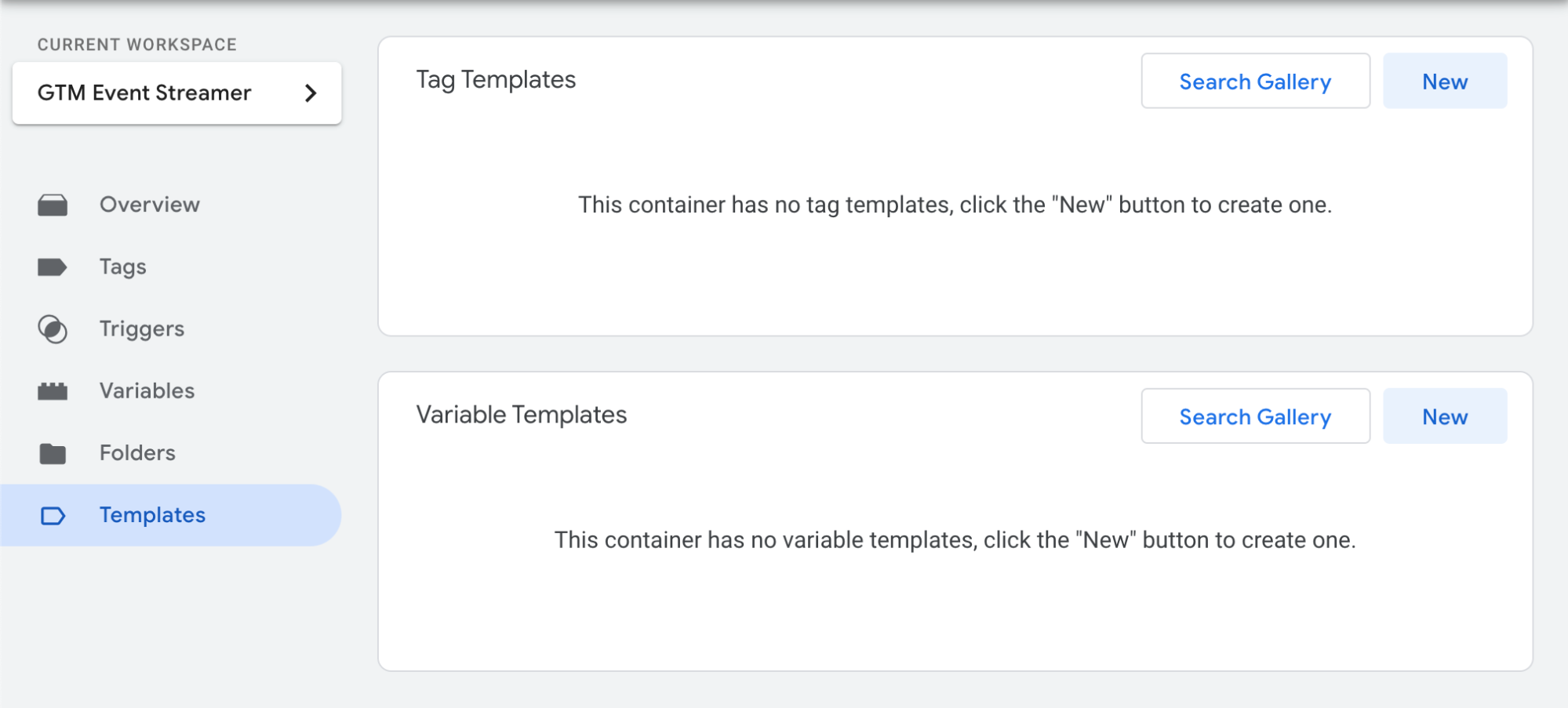
From the main menu on the left, go to Templates > Tag Templates > New.
-
On the Template Editor page, click on the vertical ellipsis (⋮) and select Import.
-
Browse for Wingify Event.tpl from the Wingify Event files that you’ve downloaded and select it. The template is uploaded to GTM.
-
Click Save to complete the import of the Wingify Event template.
Using the Wingify Event Template
Upon successful import, you can use the Wingify Event template to stream the events from GTM to Wingify effortlessly. To do that, perform the following steps:
-
From the main menu on your GTM dashboard, navigate to Tags > New.
-
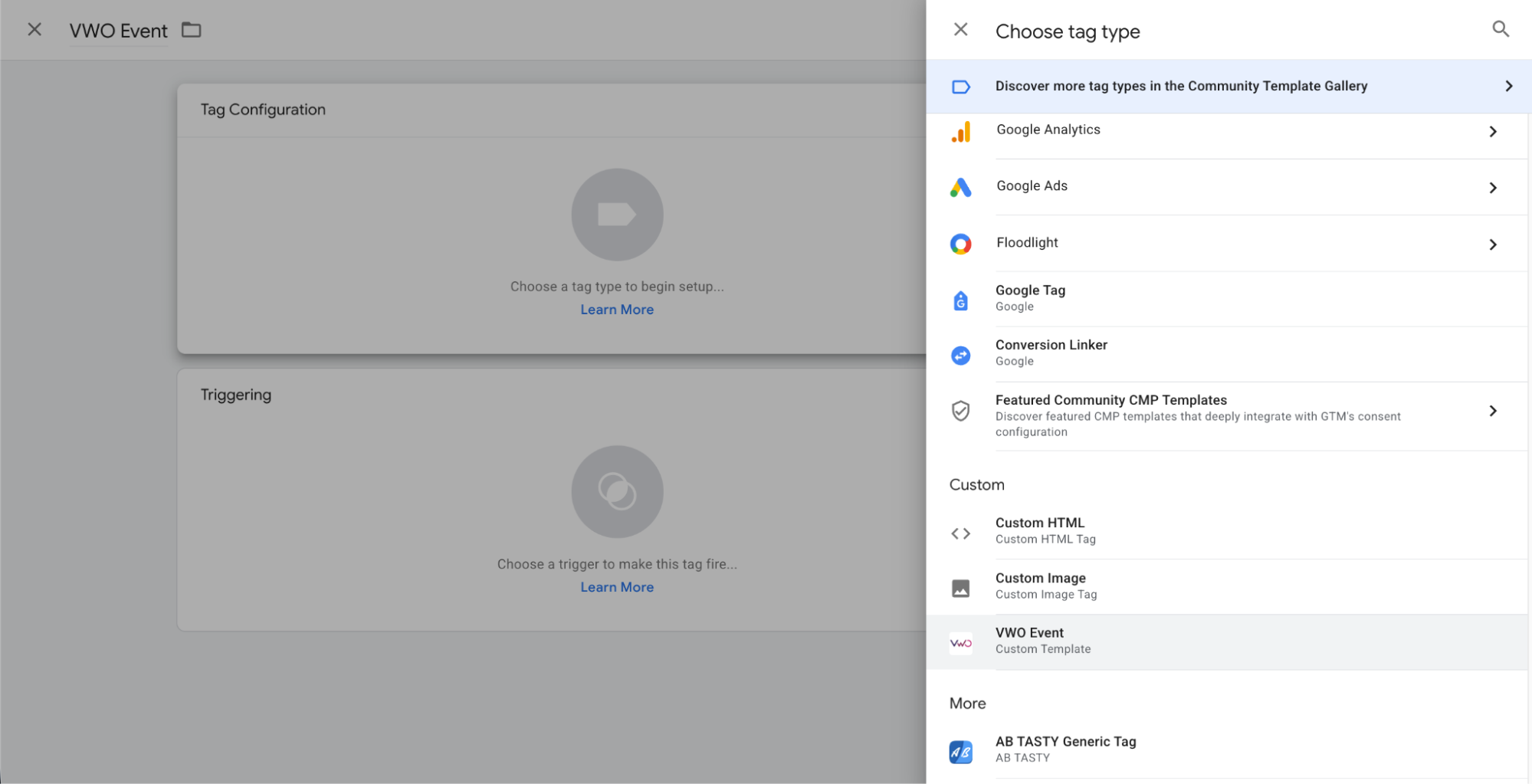
Name the tag and click on the Tag Configuration section
-
From the list of tags, under the Custom section, select the Wingify Event tag that you just imported.
-
To customize the tag configuration further, you can utilize the following options:
- Enter the Event Name you want to send to Wingify
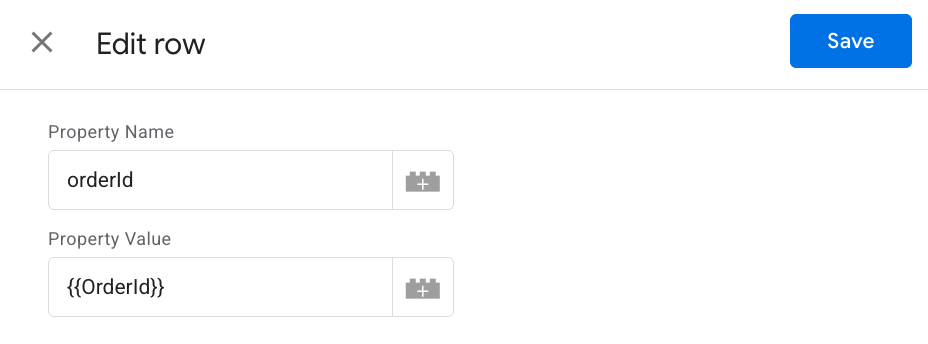
Properties: Allows you to add properties that will be sent with every event. To add a property, click on Add a Property and enter the input in the respective fields as follows:
a. Property Name: The name of the property.
b. Property Value: The value of the property.
- Enter the Event Name you want to send to Wingify
-
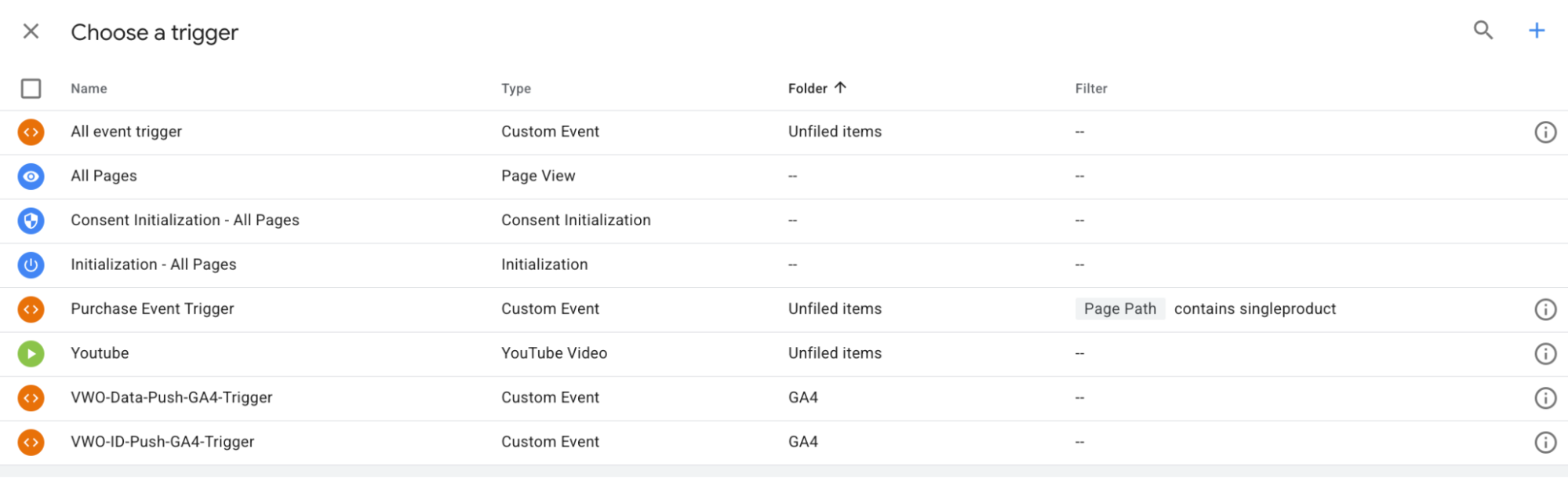
Click on the Triggering section and select the trigger to assign in the Wingify Event Tag.
Advanced Settings (Optional)
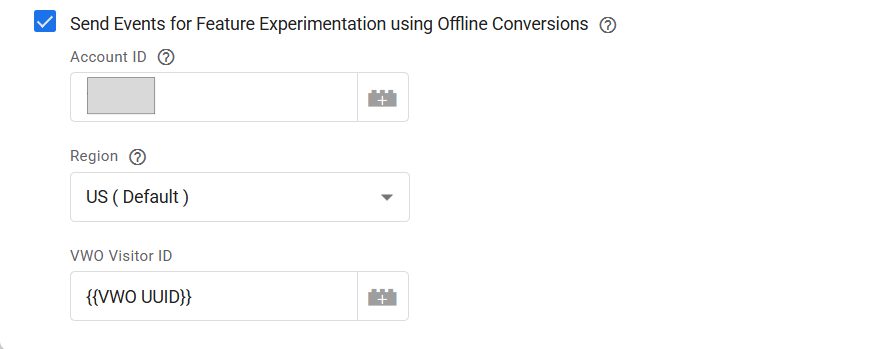
Send Events for Feature Management using Offline Conversions: If checked, events will be sent to Wingify as Offline Conversions.
– Account ID: Your Wingify Account ID
– Region: Region, US (default)
– Wingify Visitor ID: User’s UUID
Configuring the Wingify UUID Variable(Only required for FM)
-
Navigate to the “Variables” tab in the GTM workspace.
-
Click on “New” to create a new variable.
-
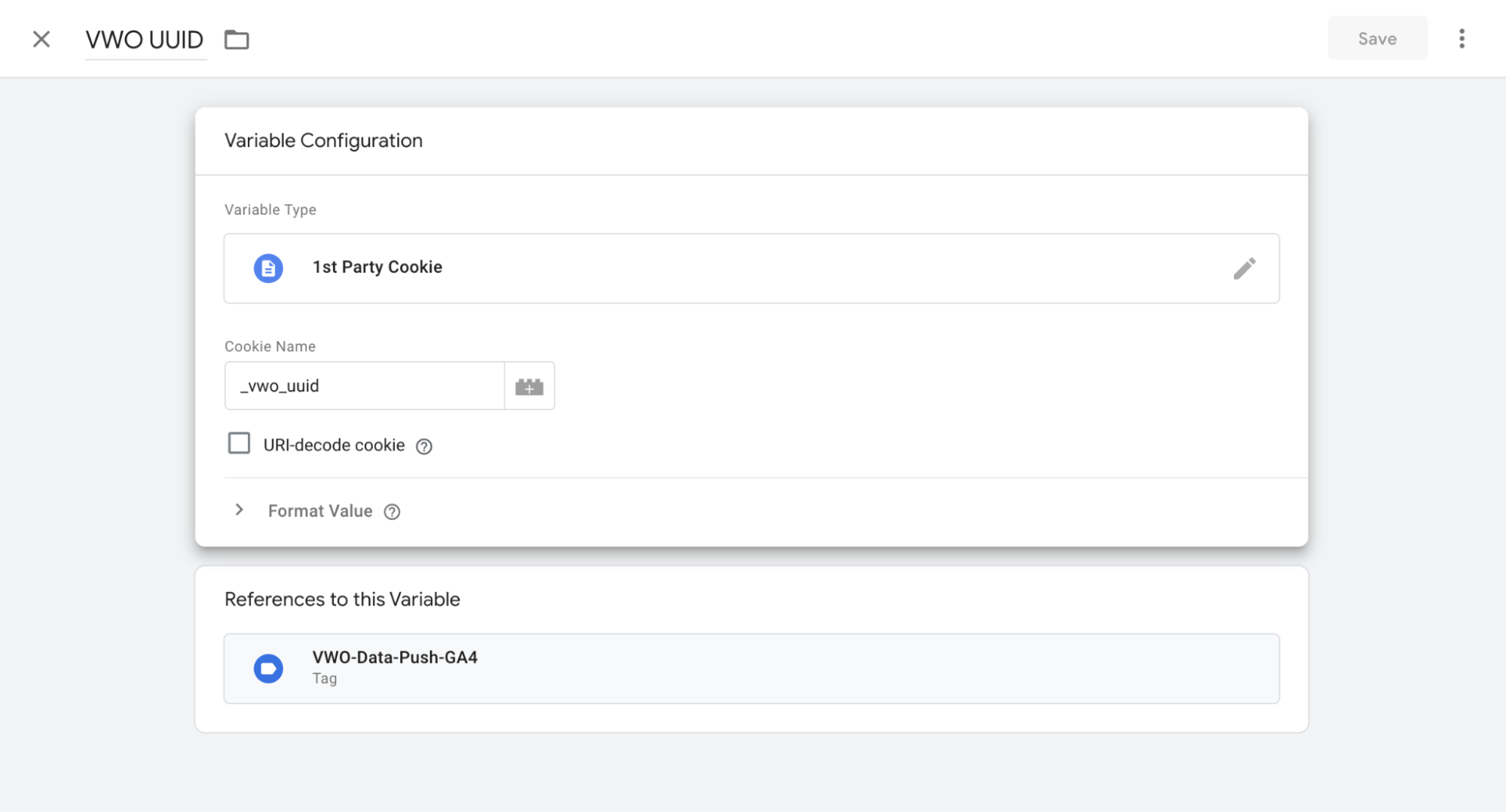
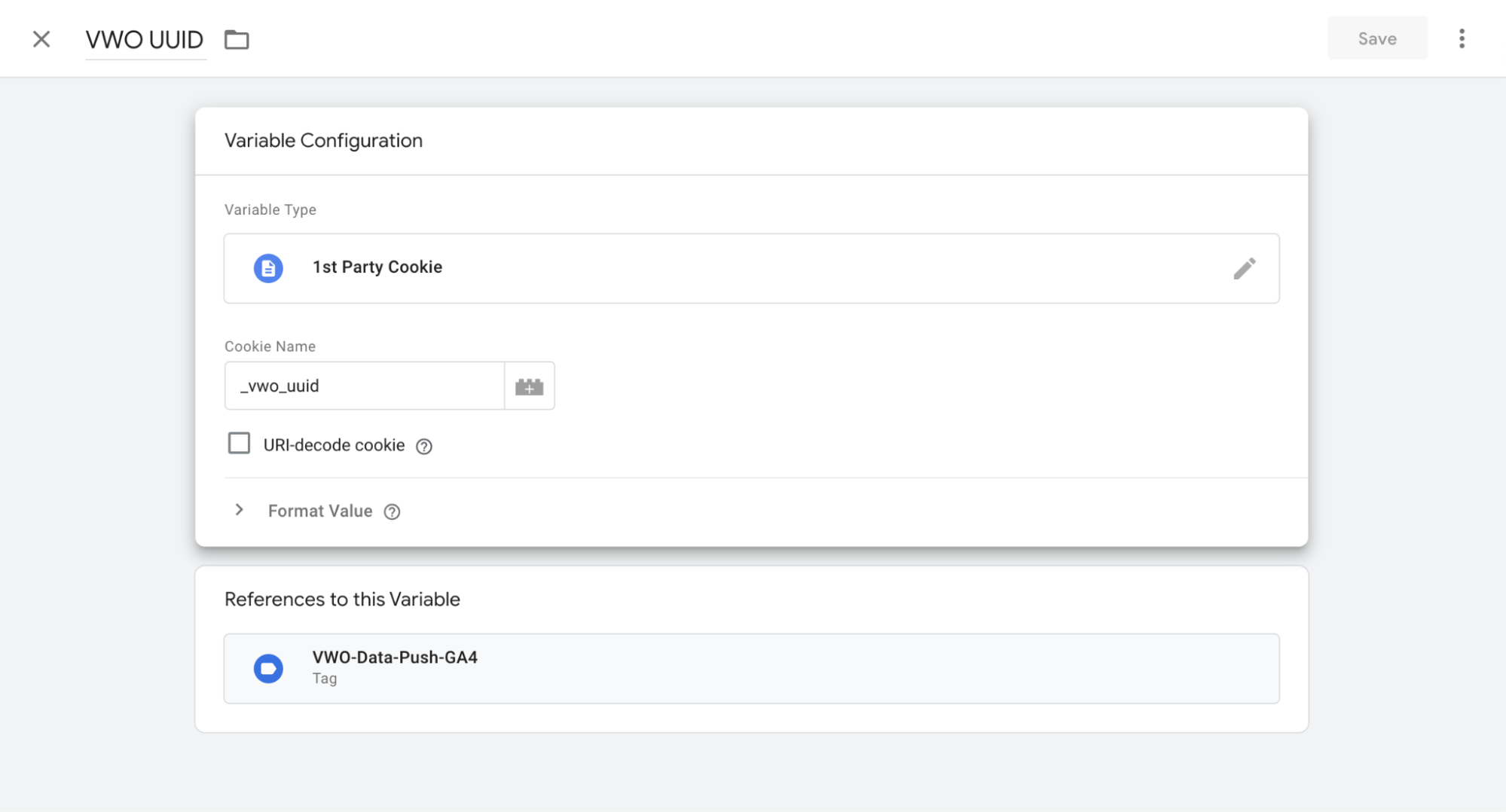
Name your variable as Wingify UUID.
-
In the Variable Configuration section:
- Choose “1st Party Cookie” as the Variable Type.
- Enter _vwo_uuid in the Cookie Name field.
-
Save the variable.
NOTE: To enable GTM event tracking, the _vwo_uuid cookie must be accessible in the browser. Use the Wingify SDK’s getUUID() method to generate this identifier based on your implementation:
Backend SDK (Server-Side)
- Generate: Call
getUUID(userId, accountId)in your SDK (e.g., Node.js). - Pass: Send the generated UUID from your server to the frontend.
- Set: Store the value in the browser as the
_vwo_uuidcookie. Ensure the cookie is notHttpOnlyso GTM can access it.
Frontend SDK (Client-Side)
- Generate: Call
getUUID()directly within your client-side SDK. - Set: Store the returned string in the browser using
document.cookiewith the name_vwo_uuid.
Technical Details
-
SmartCode Dependency: When the “Feature Management” option is OFF, this tag relies on Wingify SmartCode running on the page.
-
Via Offline Conversion: When ON, the tag pushes data independently of SmartCode. A valid Wingify Visitor ID is required.
Recommended Best Practices
- While configuring the Wingify Event tag in GTM, map event parameters (Properties) using dynamic GTM variables (typically sourced from the dataLayer) such as orderId or price, rather than using hard-coded static values.
- Maintain consistent naming conventions (camelCase, snake_case).
- For Offline Conversions, use a GTM 1st Party Cookie variable to read _vwo_uuid.
Troubleshooting / Known Issues
-
Issue: Event is not appearing in Wingify
- Verify tag firing using GTM Preview mode
- Ensure Wingify SmartCode loads before the GTM event fires (if Offline Conversion is not enabled)
-
Issue: Data not linked to the correct user (Offline Conversion)
- Ensure the Wingify Visitor ID field is populated with a valid UUID
- If undefined, check the GTM cookie variable configuration
Updated 7 days ago