
Heap
Overview:
Heap is an analytics platform that automatically collects user interaction data from your site or app to generate insights. It helps teams understand customer behavior, improve conversion and retention, and drive data-informed decisions.
What This Integration Achieves
This integration allows you to use Heap-identified users for Wingify feature flag targeting. By importing user segments from Heap into Wingify, you can roll out or test features for specific cohorts (e.g., Premium users, Trial users) and personalize product experiences based on real user behavior.
Key Benefits
- Segment-based targeting: Run feature experiments only for specific Heap segments
- Personalized rollouts: Deliver variations tailored to user properties (e.g., plan, region, lifecycle stage).
- Cohort-driven A/B testing: Combine Heap’s beahavioural analytics with Wingify’s eperiments
Step 1: Enabling the Heap Integration for Your Wingify Account
To enable the Wingify-Heap integration for your Wingify account, follow this:
-
Log in to your Wingify account.
-
From the left panel of your Wingify dashboard, go to the Configurations > Integrations tab.
-
Click on the Heap integration and enable it.
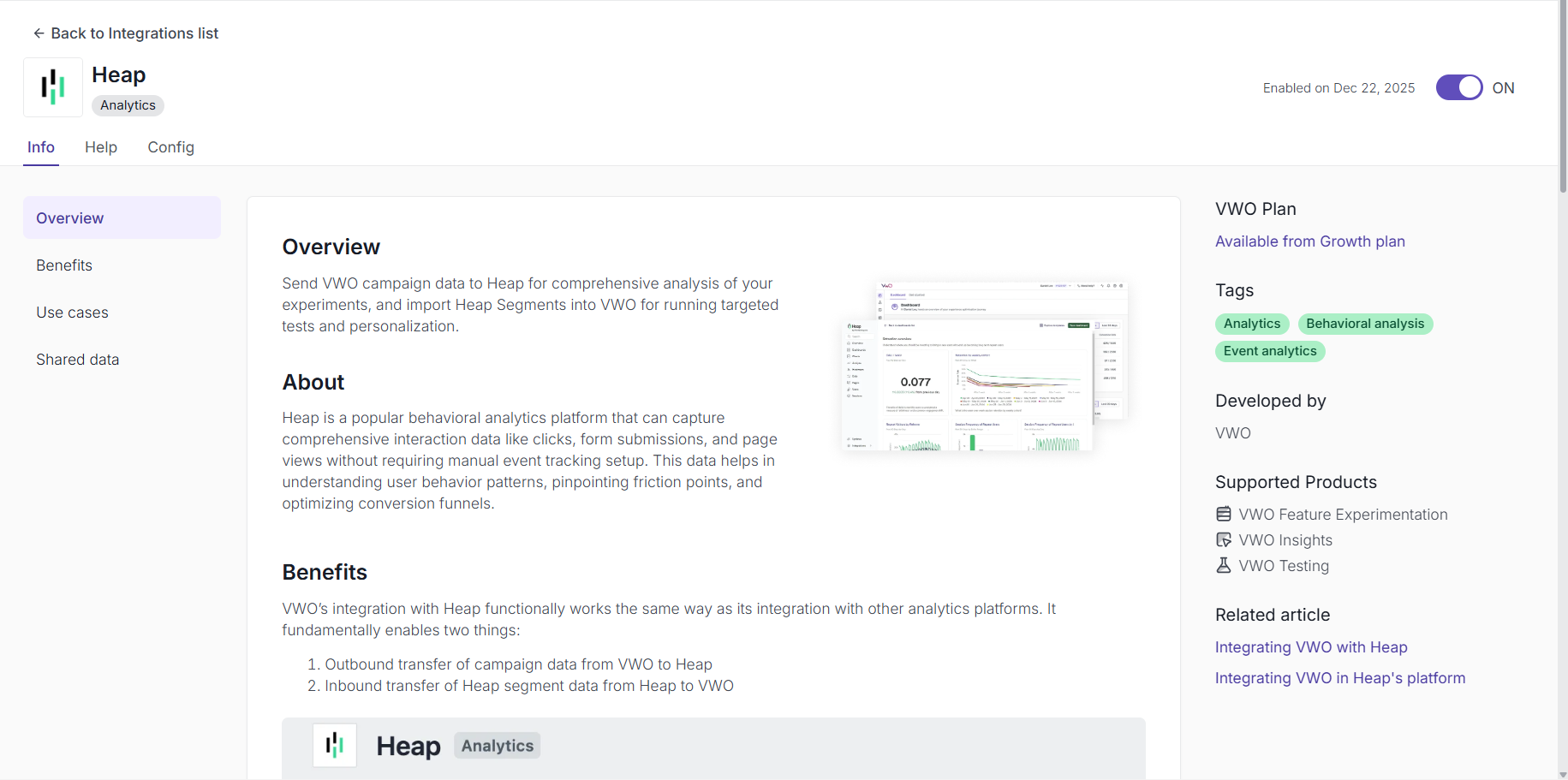
Once enabled, you will be taken to the Config tab to configure the data transit for this integration.
Step 2. Enable Use of Heap Segment for Visitor Targeting
This option lets you import the segment data from your Heap account to target visitors for your Wingify campaigns. Select this option and click Save.
NOTE: Wingify supports only Heap’s identified visitors. Heap visitors can be identified using Heap’s Identity API. To learn more about it, refer to this article.
Now, you will have to authenticate the data transfer from your Heap account to Wingify by clicking the Authenticate Wingify on Heap button. In the Authentication popup that appears, select the Heap environment that you want to use with Wingify, carefully read through what Wingify will be able to view in your Heap account with this permission, and if you’re ready to proceed, click Allow.
Once done, you will have to enable the Wingify integration in Heap to push the data from Heap to Wingify.
Step 3: Syncing a Heap Segment to Wingify
To export a segment from Heap to Wingify, you need to do the following:
-
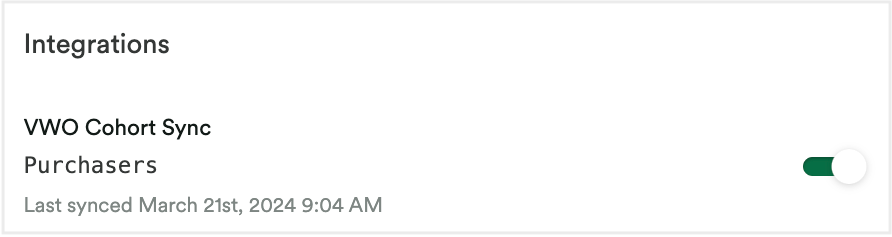
From your Heap dashboard, go to Integrations > Directory. Search for Wingify Cohort Sync and enable it.
-
Create a segment, and in the same, scroll down to the Integrations section and enable Wingify Cohort Sync.
-
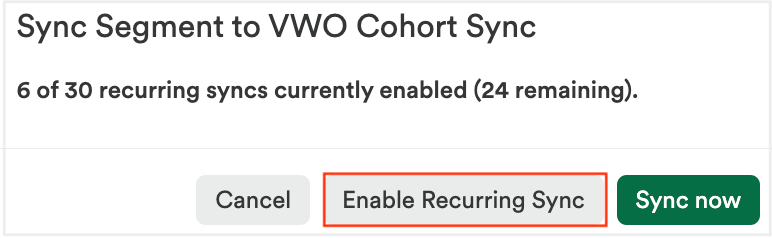
In the Sync Segment to Wingify Cohort Sync popup that appears, click Enable Recurring Sync to recurrently sync the segment for this specific campaign.
-
NOTE: We recommend using the Enable Recurring Sync option as it ensures any new data that is added to the segment is pushed to Wingify. However, if you only need the current data and do not require any new data to be pushed to Wingify, you can click on the Sync now button.
Now, the Heap segment is imported to your Wingify account. You can log in to your Wingify account to access it.
Step 4: Accessing the Heap Segments Imported Into Wingify
To access the Heap Segments imported into Wingify, perform the following steps on the Heap integration page:
-
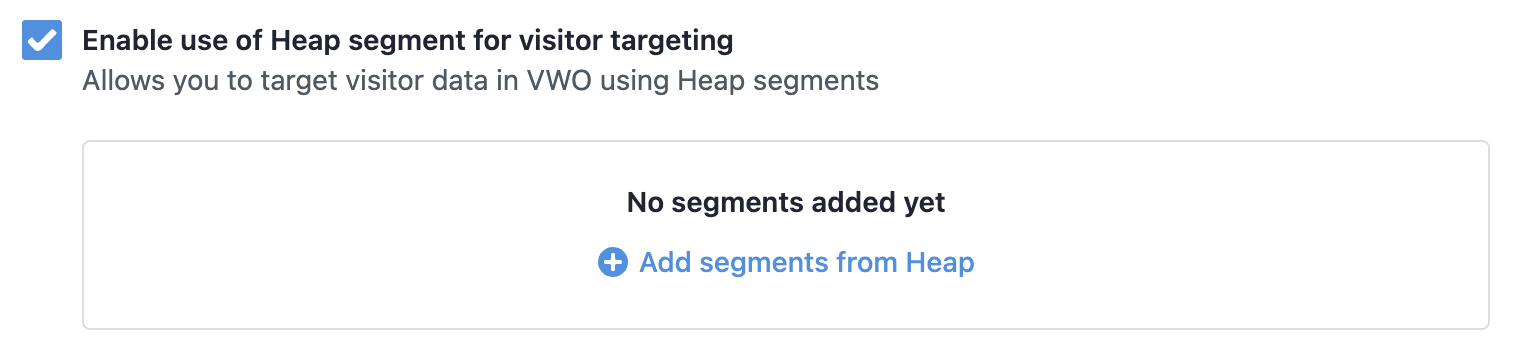
Under the Enable use of Heap segment for visitor targeting section, click on the Add segments from Heap link.
-
On the Add Heap Segments popup that appears, select the audience and click Add.
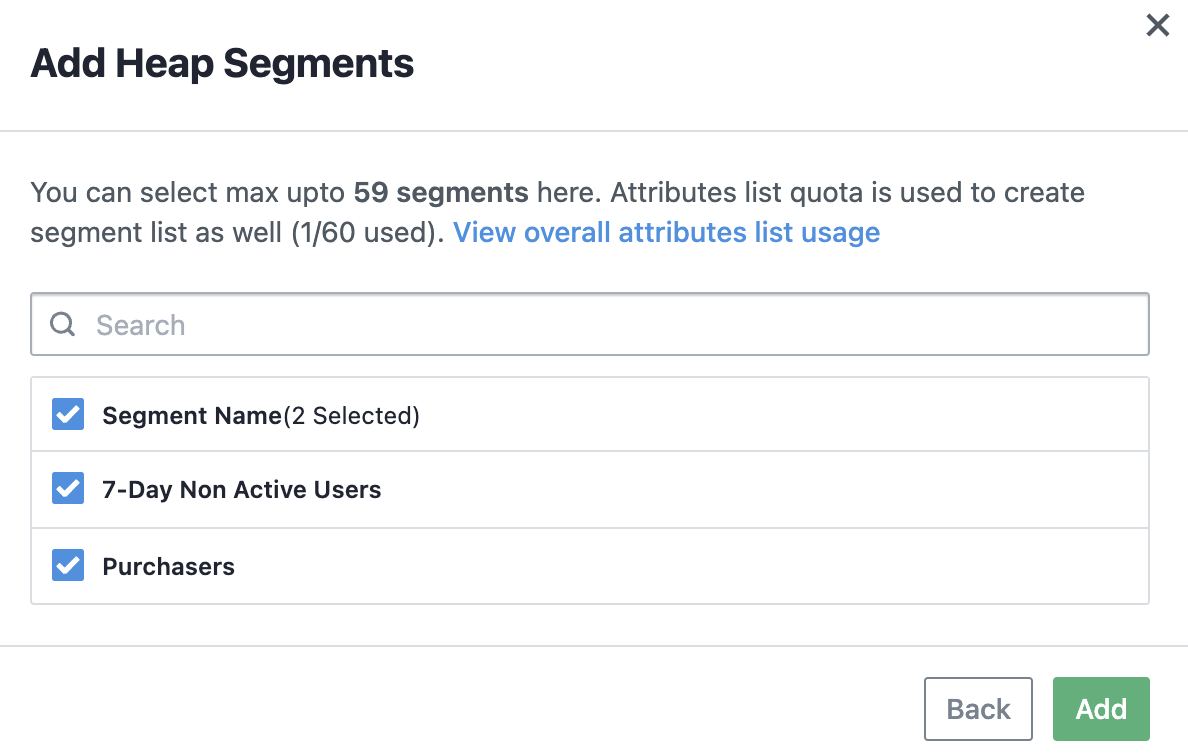
This enables Wingify to start syncing the segment. You can check the sync status from the audience list table that appears.
NOTE: At once, you can only connect one Heap account per workspace in your Wingify account
Now, we have to setup the SDK and avail the integration feature.
Step 5 : SDK Setup (Node.js Example)
Install and Initialize the Wingify SDK
Install the official Wingify FE Node SDK:
npm install vwo-fme-node-sdkSetup Gateway Service :
Reference: Wingify Gateway Service Doc
Initialize the SDK in your application with the Wingify gateway service:
Reference: SDK Initialization Doc
const { init } = require('vwo-fme-node-sdk');

const vwoClient = await init({
    sdkKey: 'YOUR_SDK_KEY',
    accountId: 'YOUR_ACCOUNT_ID',
    gatewayService: {
        url: 'YOUR_GATEWAY_SERVICE_URL'
    }
});
Note: The gatewayService is mandatory for Heap integration because the SDK itself does not store your Heap segment data. When you evaluate a flag, the SDK uses the Gateway to check in real-time if the user belongs to the synced Heap segment.
Step 6: Setting Up Pre-Segmentation for Heap-Synced Segments
Once your Heap segments are imported into Wingify, configure pre-segmentation in your feature flag to target those users.
Configure Pre-Segmentation in the Feature Flag
-
Navigate to Feature Experimentation → Feature Flags in Wingify.
-
Click Create Feature Flag (or open an existing one).
-
Add variables and variations as per your use case.
Example:
- Variable Name:
Your_Variable_Name - Type: Datatype
- Default Value: “Default value”
- Variable Name:
-
Choose a primary metric to measure conversions or engagement.
-
Go to the Rules tab → Click Create New Rollout Rule.
-
Under Audience, choose Custom Segment.
-
In Attribute, select Custom Variable.
-
Enter the identifier name used for targeting.
-
Choose Operator → In List.
-
Select the Attribute List corresponding to your Heap segment (e.g.,
heap_premium_users).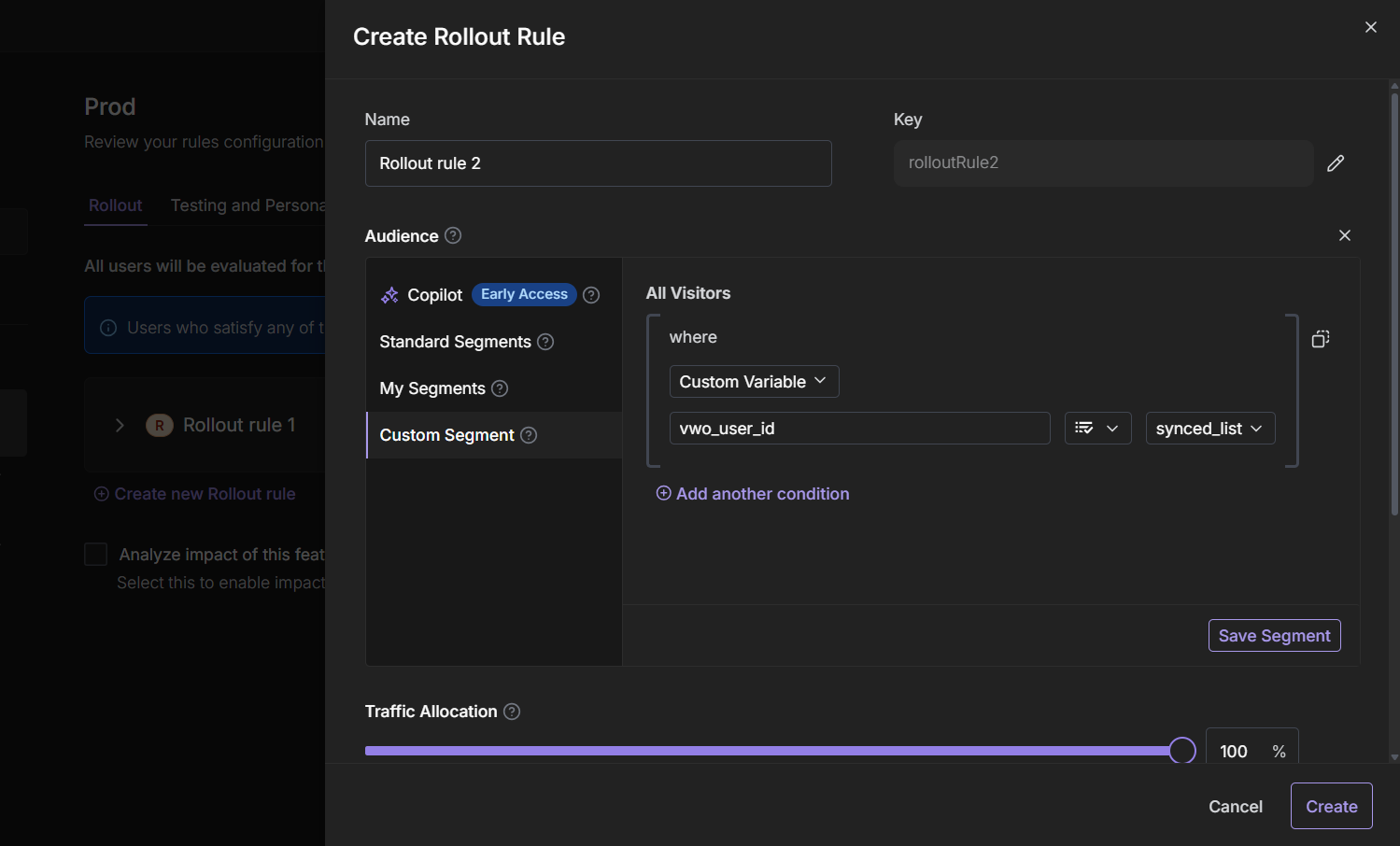
-
Save the rule and toggle ON the rollout rule.
Finally, copy the SDK Key, you’ll need it for SDK initialization.
Step 7: Implementing Heap Segment Targeting in SDK
After configuring pre-segmentation in the Wingify app, ensure your SDK passes the appropriate user context for evaluation. Let’s see an example of using Heap Segment in feature evaluation.
Once the SDK is setup do the following
-
Add the Heap identified user ID inside
customVariableswhile creating the user context. -
Pass this context to
getFlag()so Wingify can evaluate the feature flag using Heap segment pre-segmentation.
let context = {
    id: 'UserID',
    customVariables: {
        "your_custom_variable": "heapIdentifiedUserId"
    },
    ipAddress: 'user_ip_Address',
    userAgent: 'Mozilla/5.0 (Windows NT 10.0; Win64; x64) AppleWebKit/537.36 (KHTML, like Gecko) Chrome/130.0.0.0 Safari/537.36'
};

const featureFlag = vwoClient.getFlag('featureFlag', context);

if (featureFlag.enabled) {
    console.log("Feature enabled for Heap-segmented user");
} else {
    console.log("User does not qualify for the Heap segment rollout");
}
Explanation
-
The key
"your_custom_variable"must exactly match the identifier defined in your Wingify pre-segmentation rule. -
If the value (
heapIdentifiedUserId) exists in the imported Heap segment list, the segmentation passes and the user qualifies. -
If not, the segmentation fails and the rule remains disabled for that user.
Notes & Best Practices
-
Ensure the custom variable key in your SDK context matches the one defined in Wingify’s rule configuration.
-
Only Heap-identified users from the synced segment will pass the segmentation rule,
Reference: Heap’s Identity API -
If you have multiple Heap segments, create separate rollout rules for each to maintain clear targeting logic.
-
Always use recurring sync to keep segment data updated between Heap and Wingify
Updated 4 months ago